
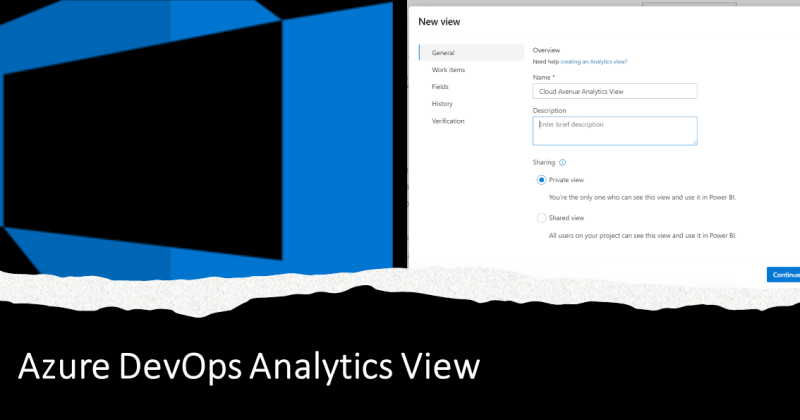

Azure DevOps Analytics allows you to connect and get the Azure DevOps Work Items data on Power BI report based on filter criteria provided, very easily. It’s available as a Preview Feature in Azure DevOps. To enable the Analytics view and create custom analytics view, follow the below steps:
1. Click on the User Settings on the top left and click Preview Features.

2. On Preview Feature, Toggle Analytics Views button to ON

2. Once done, you will see Analytics views option enabled in the Left menu of Azure DevOps

3. Click on Analytics View and it will open the Analytics View page. Click New View.

4. In the New View box, provide the Name, Description, Work Items Filters, Fields, History and Click Save.

5. This will make View available, when you will add the Data Source again in your Power BI Desktop.
Summary
Enable Analytics view on Azure DevOps to make it really easy to connect and fetch the data on Power BI to make interactive and rich dashboards.
 Cloud Avenue
thank you
LikeLike